The HD video monitor can send out notifications of events whenever the camera detects motions by default.
You can switch on the motion detection function and set your camera to record videos when it detects movements. The default setting is OFF.
1. In the camera list, tap of a paired camera to enter its Camera Settings menu.

2. Tap Motion Detection Settings.
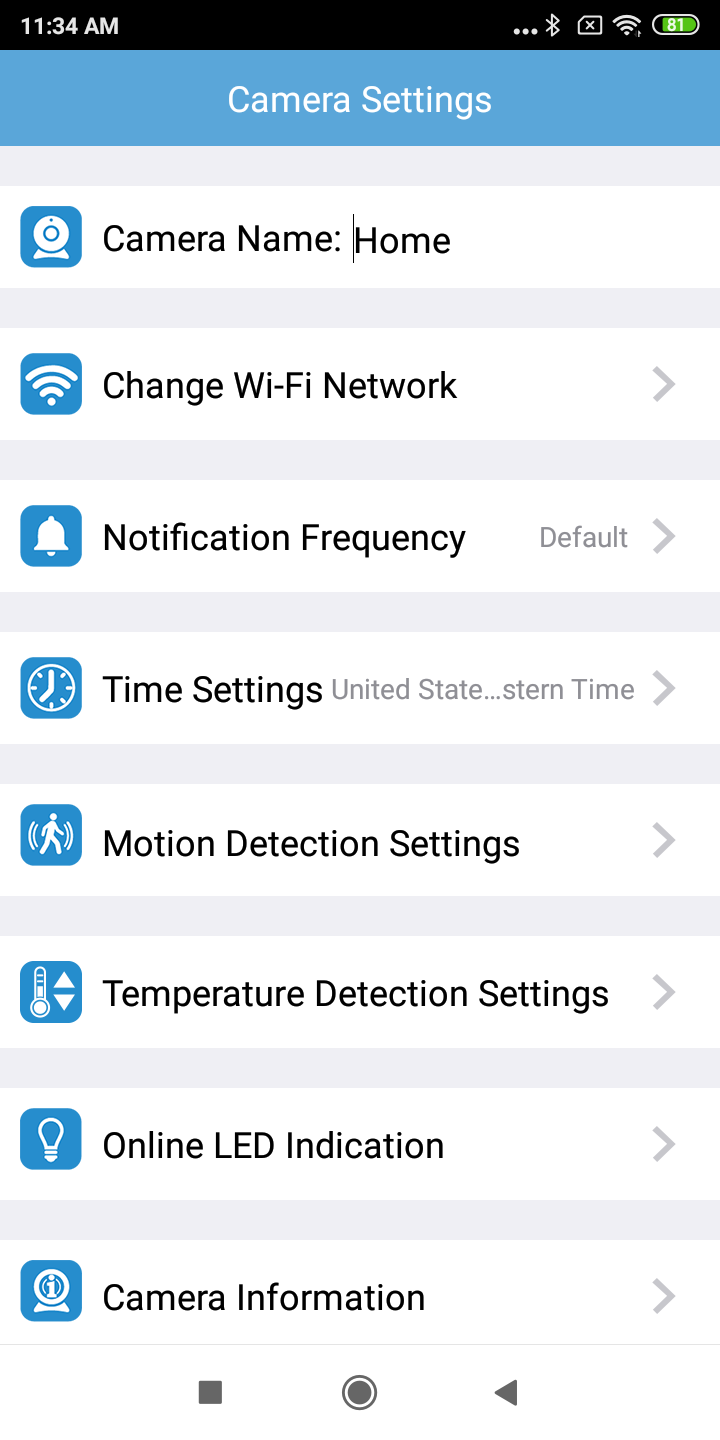
3. Switch Motion detection to ON.
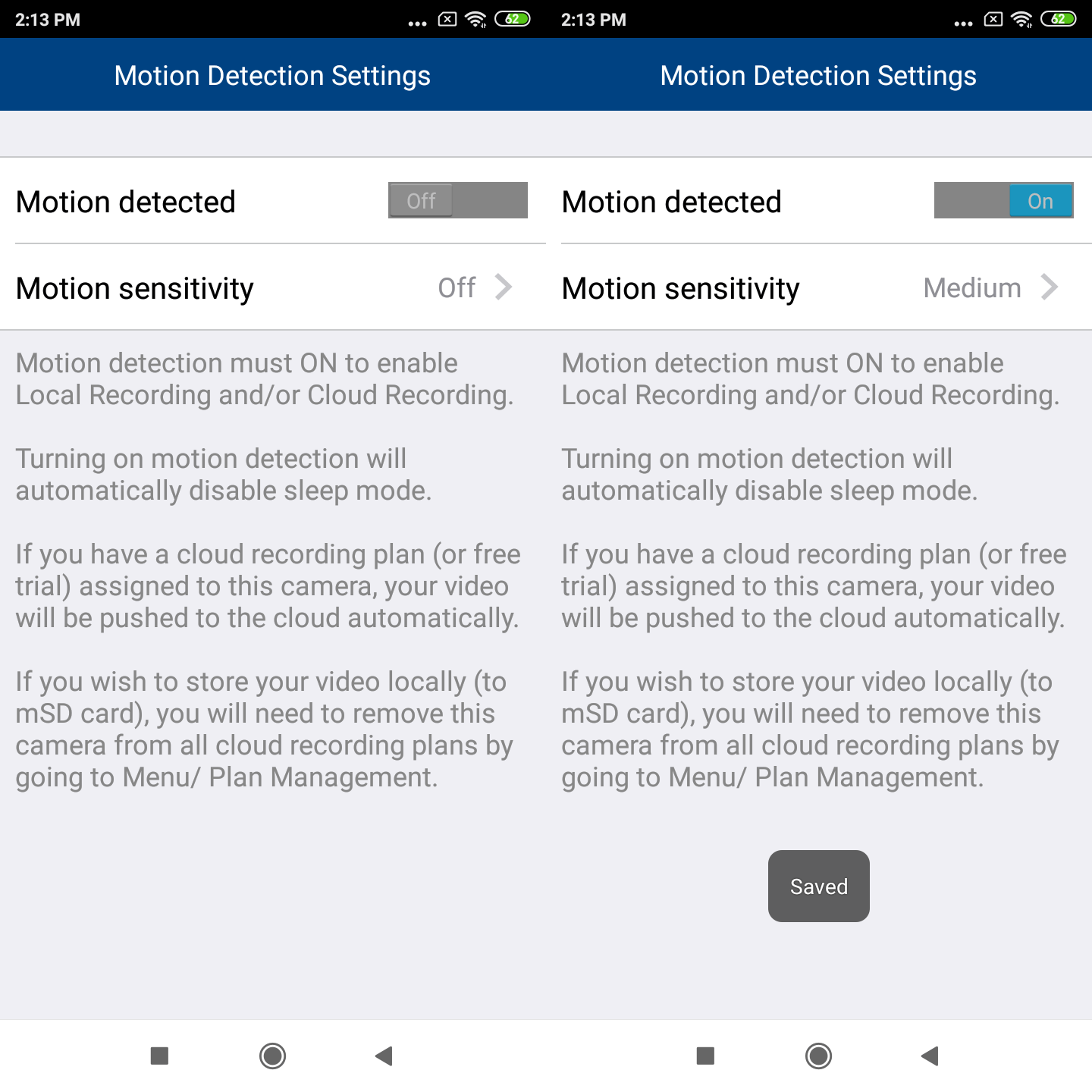
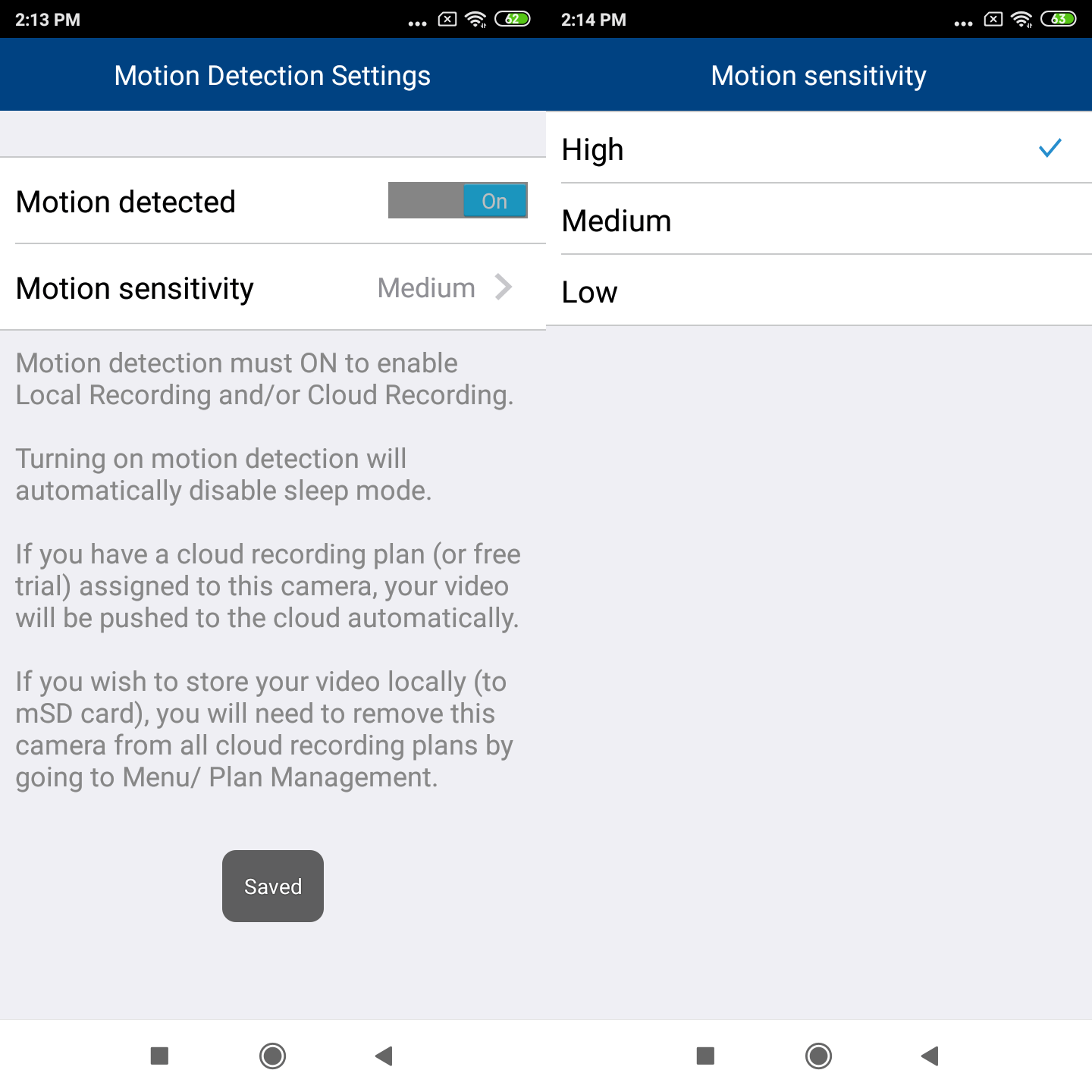
4. Tap Motion sensitivity, and then tap Low, Medium or High to select the motion sensitivity level.
 CAUTION
- Prior to inserting or ejecting the micro SD card, the camera must be powered off. To power off, unplug the camera from the power supply.
 NOTES
NOTES
- Make sure you have set your mobile device to allow notifications sent from the app. See How to allow notifications sent from MyVTech Baby 1080p app (Android & iOS).
- Motion detection events are shown in the Event log. See Event timeline.
 TIP
TIP
- There are 3 levels of motion detection sensitivity - Low, Medium or High. For details, see Motion Sensitivity levels.