Welcome to VTech Support

Enter your model number or search for information

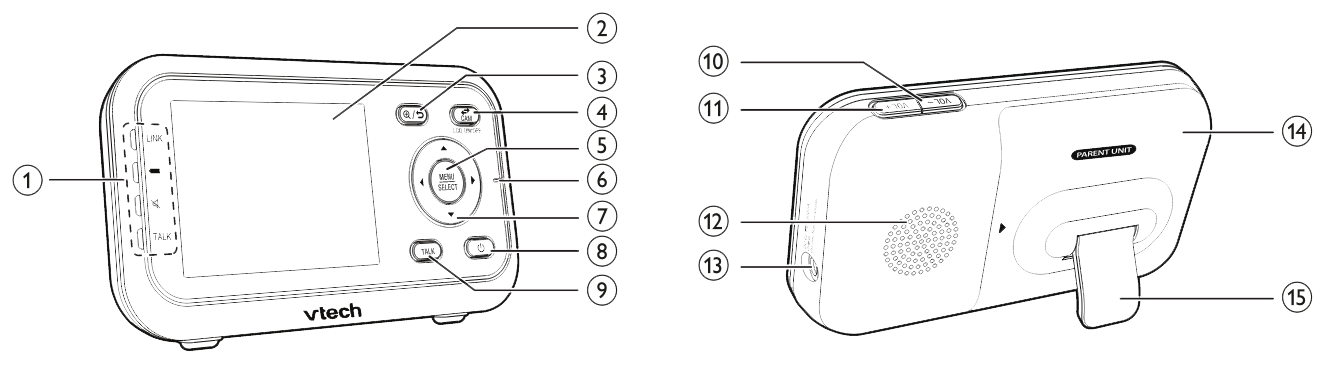
Parent unit overview - VM3252 / VM3252-2


PU_overview.png


1

LED lights

  • Indicate the different statuses of the parent unit. For details, refer to Parent unit lights.
2 LCD display
3

zoom_icon.png Zoom / back_icon.png Back

  • Press to zoom in or out while viewing image.
  • Press to return to the previous screen.
4

cam_patrol_silkscreen.png

  • Press to change the screen to view images from different baby units (for VM3252-2 only).

LCD ON/OFF

  • Press and hold to turn on or off the LCD screen.
5

MENU/SELECT

  • Press to enter the menu or submenu.
  • While in a sub-menu, press to choose an item, or save a setting.
6 Microphone
7

mceclip4.png

  • While in a menu, press to scroll up, or to enter an item’s sub-menu.
  • While zooming, press and hold to move the zoomed image upward.

mceclip7.png

  • While in a menu, press to scroll down.
  • While zooming, press and hold to move the zoomed image downward.

mceclip2.png

  • While in a menu, press to choose the next item on the left, or enter into the submenu, if any.
  • While zooming, press and hold to move the zoomed image leftward.

mceclip3.png

  • While in a menu, press to choose the next item on the right, or return to the main menu while in submenu.
  • While zooming, press and hold to move the zoomed image rightward.
8

power_icon.png On/Off

  • Press and hold to power on.
  • Press and hold again to power off.
9

talk_silkscreen.png

  • Press and hold to talk to the selected baby unit.
10

VOL-

  • Turn down the volume when the speaker is on.
11

VOL+

  • Turn up the volume when the speaker is on.
12 Speaker
13 Power jack
14 Battery compartment cover
15 Stand


Was this article helpful?
0 out of 0 found this helpful